
By: Otaiba Ahsan
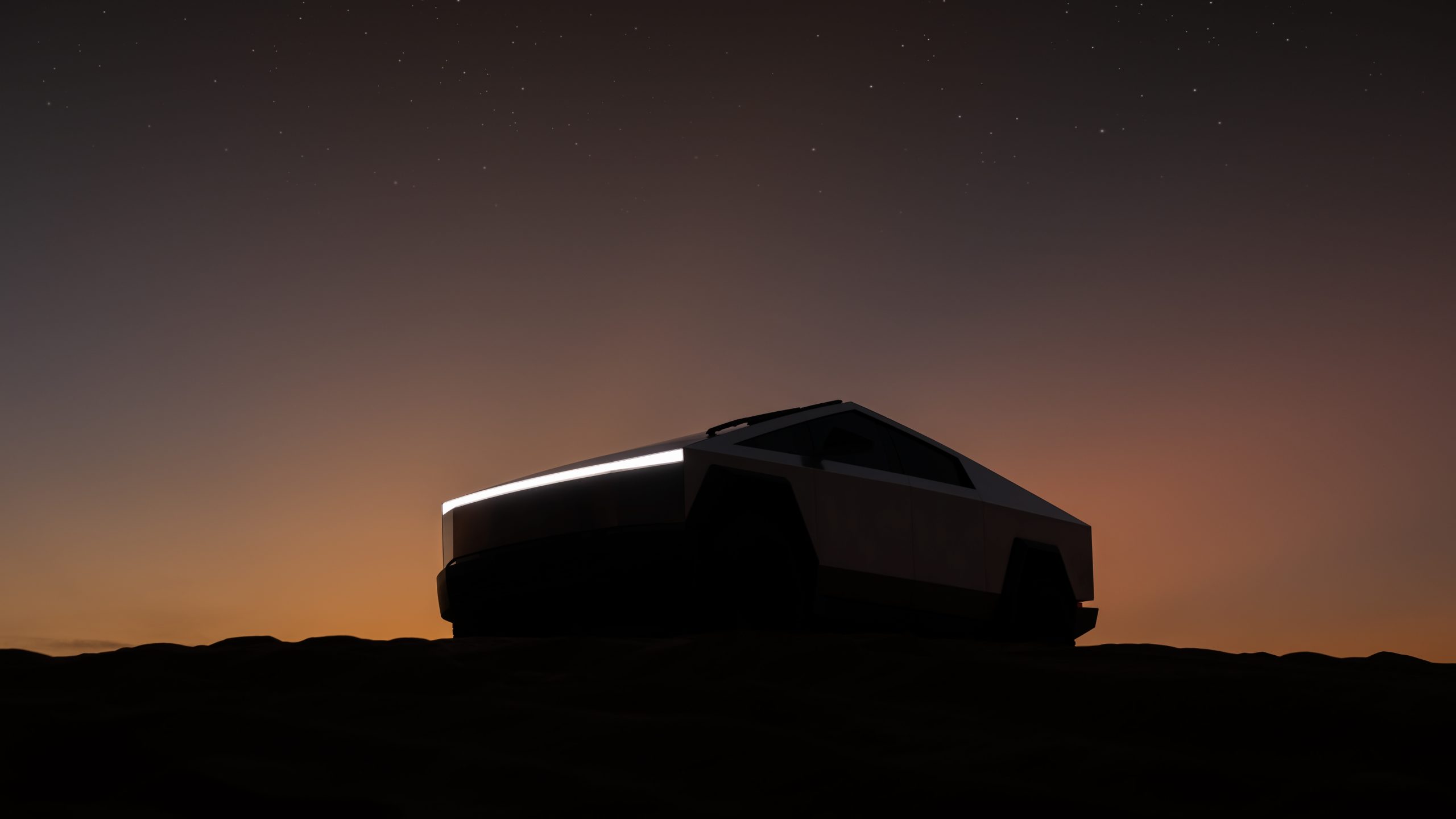
The Tesla Cybertruck has incredibly powerful headlights that help provide visibility for safe driving in dark conditions. In fact, they’re so strong that I’ve seen on several occasions, drivers getting upset at Cybertruck owners who thought their high beams were on, even when the normal settings were engaged. Those drivers would be in for a surprise if they saw the actual high beams in use! Continue for steps on how to turn on the high beam headlights in the Tesla Cybertruck.
Normal Headlights
All the exterior lights are set to Auto each time you start your Cybertruck. This includes headlights, tail lights, side marker lights, and more. The Auto feature examines the environment and determines what combination of lights is best to engage during that time. To adjust any headlight settings, tap Controls > Lights when in your Tesla. You can then choose from a few different options:
- Off: Turn all exterior lights off. However, depending on the region you’re in, daytime running lights may remain on due to regulations.
- Parking: By toggling this setting, parking lights, side marker lights, tail lights, and license plate lights will turn on, if they’re not already.
- On: Low beam headlights, side marker lights, parking lights, tail lights, and the licence plate lights will all turn on, if they’re not already.
If you change to a different setting, the lights will always revert to Auto on your next drive.
TIP: The rear tail lights are off when daytime running lights are on. However, it’s vital that they remain on during low rear visibility conditions. These include dark, foggy, snowy, or wet environments. If they’re not on, it can result in dangerous situations.
High Beam Headlights
The high beams in the Tesla Cybertruck are powerful. By default, the Auto High Beam (sometimes called Adaptive Headlights) setting is enabled. This will automatically engage the high beams when the vehicle deems necessary and will switch to low beams when a light is detected in front of the car.
NOTE: In my opinion, the Auto High Beam setting needs improvement. When enabled, I found that it would switch to the low beam setting far too late, and it would be inconvenient for other drivers. For that reason, I keep this setting off.
To control Auto High Beam, tap Controls > Lights > Auto High Beam and then you can toggle it on or off. However, if you’re using the Autosteer feature, then the Auto High Beam setting will automatically be enabled and cannot be toggled off.
Manually Turning on High Beam Headlights
If you’re not a fan of the Auto High Beam setting like me, then you can toggle it off using the steps above. However, if you want to manually use the high beams, you can do so in two ways:
- Temporary Use: On your steering wheel, press and quickly release the high beam headlights button to quickly flash the headlights.
- Consistent Use: Press and hold to turn on the headlights, the touchscreen will display a brief timer and you must hold for the duration of the timer to latch the headlights to the On position.
NOTE: When the high beam headlights are on, simply press the button a second time to turn them off.
The Bottom Line
The steps to turn on the high beam headlights in the Tesla Cybertruck are easy. If Auto High Beam is enabled, then no action is required from you. It’ll simply turn on and off when the vehicle deems it appropriate. However, if this feature is disabled, then you can temporarily turn on the high beam by pressing and quickly releasing the high beam headlights button on the steering wheel. It’ll turn off when you let go. Lastly, if the Auto High Beam setting is toggled off, you can also press and hold the button to keep them on.